Transform Your Android Phone Into A Gaming Powerhouse: Key Strategies

In recent years, Android games have seen remarkable improvements, thanks to significant advancements in processing power. While most mobile games now run smoothly on a variety of phones, some demanding titles like Genshin Impact, BGMI, and Wreckfest may still experience occasional lag or stuttering.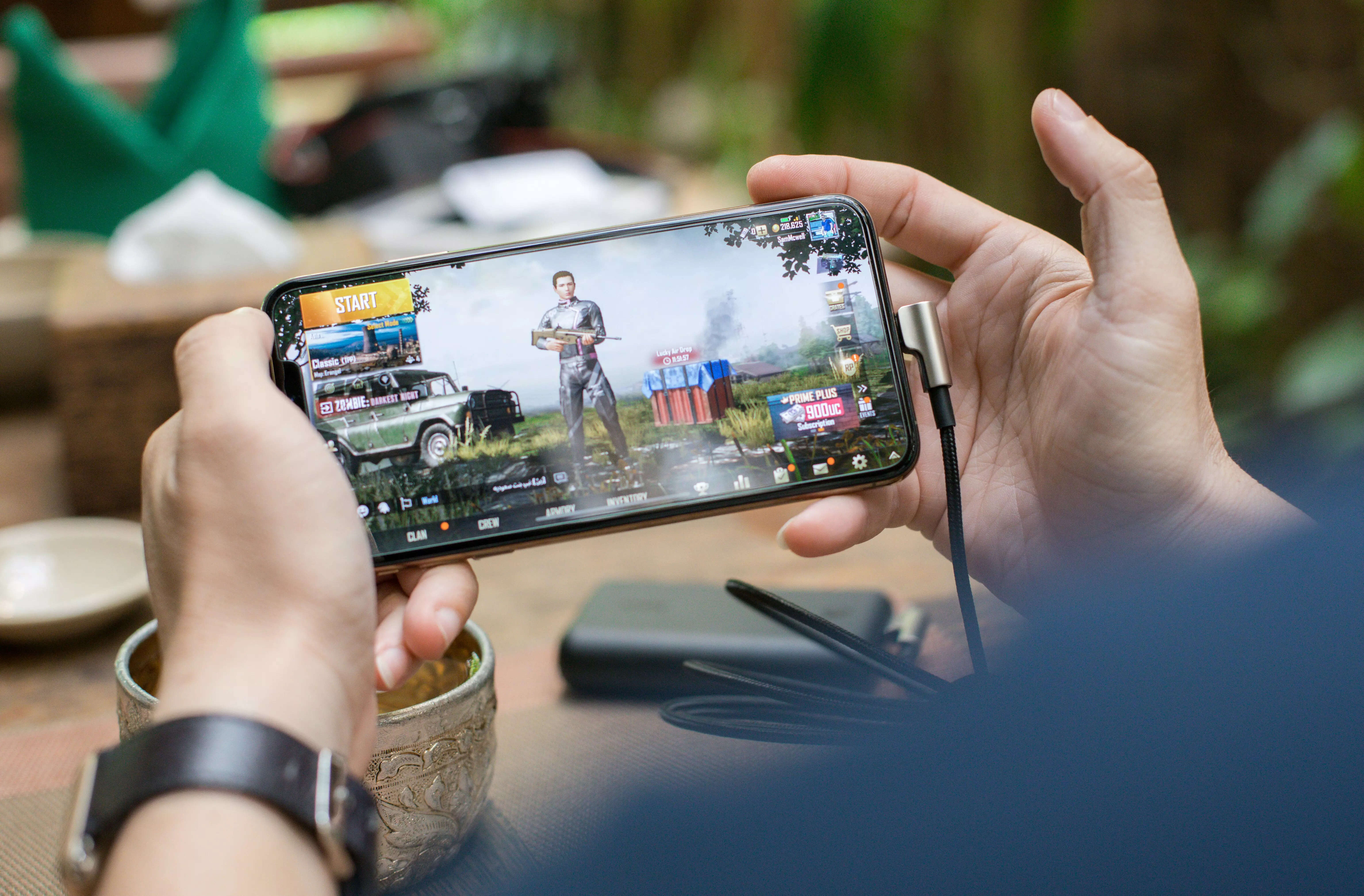
To help you optimize your gaming experience on an Android device, here are some useful tips and tricks to get the best performance from your smartphone.
Enable High Refresh Rate for Games
Modern Android phones often feature high refresh rate screens, but manufacturers typically set them to auto or low (60Hz) by default to save battery. This might mean your favorite games aren't utilizing the highest refresh rate available. The steps to enable a higher refresh rate can vary by manufacturer.
For OnePlus, Realme, and Oppo devices, open the Settings app and navigate to the ‘Display and Brightness’ section. Scroll down to find ‘Screen refresh rate’ and set it to high. This will unlock the ‘App-specific refresh rate’ option. Tap on it, find your game in the list, and set its refresh rate to maximum.
On Samsung devices, you can enable this setting by choosing the ‘Adaptive’ option under ‘Motion smoothness’.
Switch to 2.4GHz Wi-Fi Network
Recent Wi-Fi routers support both 2.4GHz and 5GHz networks, with many Android phones defaulting to the faster 5GHz network. Although this can improve internet speed, 5GHz networks have a shorter range compared to 2.4GHz networks.
If you play games in a room far from the router, switching to a 2.4GHz Wi-Fi network can improve connection stability, as your phone will have an easier time maintaining a strong connection.
Clear Apps from Memory
This tip is particularly relevant for those with budget or mid-range devices, which can easily run out of memory and cause lag during demanding games like BGMI or Genshin Impact. To prevent performance drops, clear all apps from the recent apps screen before starting a game.
Disable Power Saving Mode
Though it might seem obvious, many Android phones automatically enable power-saving mode when the battery is low. Power-saving mode reduces animations, processing power, and other functions to prolong battery life.
To avoid this, disable power-saving mode before gaming or turn it off entirely if you want uninterrupted performance.
Enable Game Mode
Many Android manufacturers, including Realme, Samsung, Oppo, and Vivo, offer built-in game modes that optimize hardware performance. If your phone has this feature, enable it for your favorite games to benefit from increased touch responsiveness, reduced mistouches, background app management, and adjusted CPU and GPU clock speeds.
These features can vary by phone and may need to be enabled for individual games or apps, but they can significantly enhance your overall gaming experience by minimizing stutters and distractions.
By implementing these tips and tricks, you can ensure a smoother and more enjoyable gaming experience on your Android device.
To help you optimize your gaming experience on an Android device, here are some useful tips and tricks to get the best performance from your smartphone.
Enable High Refresh Rate for Games
Modern Android phones often feature high refresh rate screens, but manufacturers typically set them to auto or low (60Hz) by default to save battery. This might mean your favorite games aren't utilizing the highest refresh rate available. The steps to enable a higher refresh rate can vary by manufacturer.
For OnePlus, Realme, and Oppo devices, open the Settings app and navigate to the ‘Display and Brightness’ section. Scroll down to find ‘Screen refresh rate’ and set it to high. This will unlock the ‘App-specific refresh rate’ option. Tap on it, find your game in the list, and set its refresh rate to maximum.
On Samsung devices, you can enable this setting by choosing the ‘Adaptive’ option under ‘Motion smoothness’.
Switch to 2.4GHz Wi-Fi Network
Recent Wi-Fi routers support both 2.4GHz and 5GHz networks, with many Android phones defaulting to the faster 5GHz network. Although this can improve internet speed, 5GHz networks have a shorter range compared to 2.4GHz networks.
If you play games in a room far from the router, switching to a 2.4GHz Wi-Fi network can improve connection stability, as your phone will have an easier time maintaining a strong connection.
Clear Apps from Memory
This tip is particularly relevant for those with budget or mid-range devices, which can easily run out of memory and cause lag during demanding games like BGMI or Genshin Impact. To prevent performance drops, clear all apps from the recent apps screen before starting a game.
Disable Power Saving Mode
Though it might seem obvious, many Android phones automatically enable power-saving mode when the battery is low. Power-saving mode reduces animations, processing power, and other functions to prolong battery life.
To avoid this, disable power-saving mode before gaming or turn it off entirely if you want uninterrupted performance.
Enable Game Mode
Many Android manufacturers, including Realme, Samsung, Oppo, and Vivo, offer built-in game modes that optimize hardware performance. If your phone has this feature, enable it for your favorite games to benefit from increased touch responsiveness, reduced mistouches, background app management, and adjusted CPU and GPU clock speeds.
These features can vary by phone and may need to be enabled for individual games or apps, but they can significantly enhance your overall gaming experience by minimizing stutters and distractions.
By implementing these tips and tricks, you can ensure a smoother and more enjoyable gaming experience on your Android device.
Next Story