
Best Software To Schedule Automatic Backups On Your PC And Protect Important Files

Important files can disappear in seconds after a hard drive failure, accidental deletion or a serious system problem. Yet manually copying documents, photographs and other data to another location is a task many people put off until it is too late. Automatic PC backup software can take that responsibility off the user’s hands by creating scheduled copies at regular intervals. Depending on the programme, users can back up selected folders, entire drives or even create complete system images. The right choice depends on the type of data being protected, preferred storage location and how much control is required over the backup process.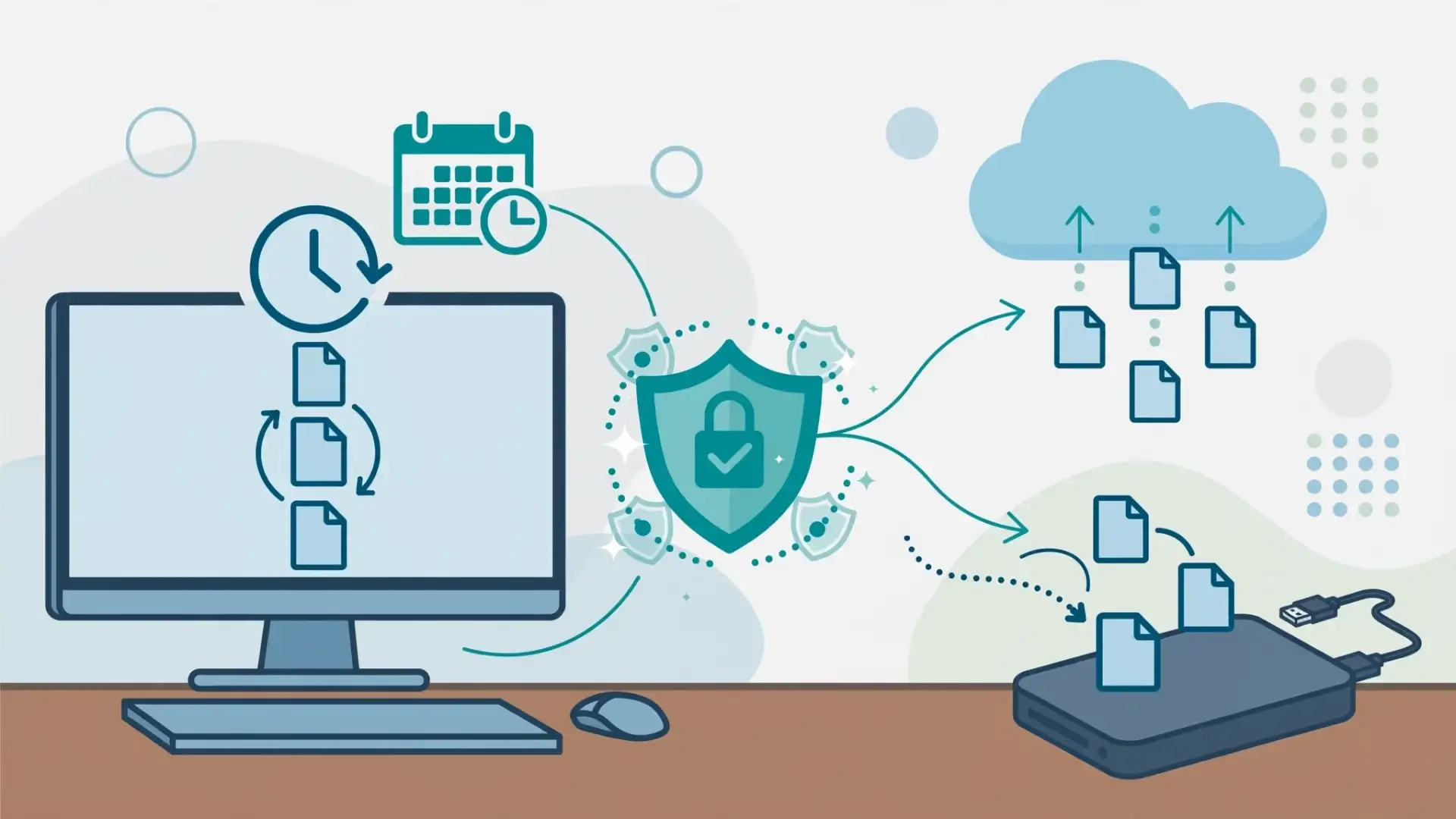
These built-in options can be useful for everyday file protection without installing another programme. Users looking for advanced system imaging, detailed scheduling or more specialised recovery tools may prefer dedicated backup software.
A full system backup can be particularly useful when recovering from a major computer failure because it can preserve more than individual documents. According to experts, having a complete recovery option can save considerable time when a system needs to be restored.
Available features can vary between editions, so users should check the capabilities of the version they intend to use before setting up their backup strategy.
Industry watchers note that scheduling a backup is only one part of good data protection. Users should also check that backups are completing successfully and periodically test whether files or system images can actually be restored.
For additional protection, users can follow the 3-2-1 backup approach: keep three copies of important data, store them using two different types of media and maintain at least one copy away from the main PC. This can reduce the impact of hardware failure, theft or other unexpected events.
Image Courtesy: Meta AI
Windows Has Built-In Backup Options
For users who want a straightforward solution, Windows already provides backup features that can cover common needs. Windows Backup can back up selected folders and settings, while File History can maintain previous versions of files when configured with a suitable storage location.These built-in options can be useful for everyday file protection without installing another programme. Users looking for advanced system imaging, detailed scheduling or more specialised recovery tools may prefer dedicated backup software.
Acronis Offers Broader Protection
Acronis Cyber Protect Home Office is designed for users who want more comprehensive backup capabilities. Depending on the edition, it supports file and folder backups as well as full-system protection.A full system backup can be particularly useful when recovering from a major computer failure because it can preserve more than individual documents. According to experts, having a complete recovery option can save considerable time when a system needs to be restored.
You may also like
- Claude can be a 'no less tough' manager than a human boss; finds out an employee fired by the AI tool over …
- Govt notifies 405 key defence items worth Rs 3,070 crore for indigenous manufacturing
- India likely to reach 62 pc 5G adoption by 2030
- BoatStone 900 Bluetooth speaker review: The party speaker that punches well above its price
- Elon Musk-owned Tesla to launch Cybercab robotaxi service in Austin this month; employees to get first ride
EaseUS Focuses On Flexible Backups
EaseUS Todo Backup provides options for scheduled file, disk and system backups. Users can configure recurring backup tasks according to their requirements, making it suitable for those who want greater control than basic Windows tools provide.Available features can vary between editions, so users should check the capabilities of the version they intend to use before setting up their backup strategy.
Macrium Reflect For System Imaging
Macrium Reflect is another option for users who are particularly interested in disk and system imaging. It can create images of drives and partitions, which can then be used for system recovery.Industry watchers note that scheduling a backup is only one part of good data protection. Users should also check that backups are completing successfully and periodically test whether files or system images can actually be restored.
For additional protection, users can follow the 3-2-1 backup approach: keep three copies of important data, store them using two different types of media and maintain at least one copy away from the main PC. This can reduce the impact of hardware failure, theft or other unexpected events.
Image Courtesy: Meta AI






Loving Newspoint? Download the app now
