
How to Photograph the Moon With Your Smartphone Without Getting a Blurry White Circle

Photographing the moon with a smartphone can be surprisingly tricky. A full moon may look large and detailed to the eye, yet a phone often records a tiny white circle against a dark sky. Automatic exposure can wash out lunar detail unless you take control of focus and brightness.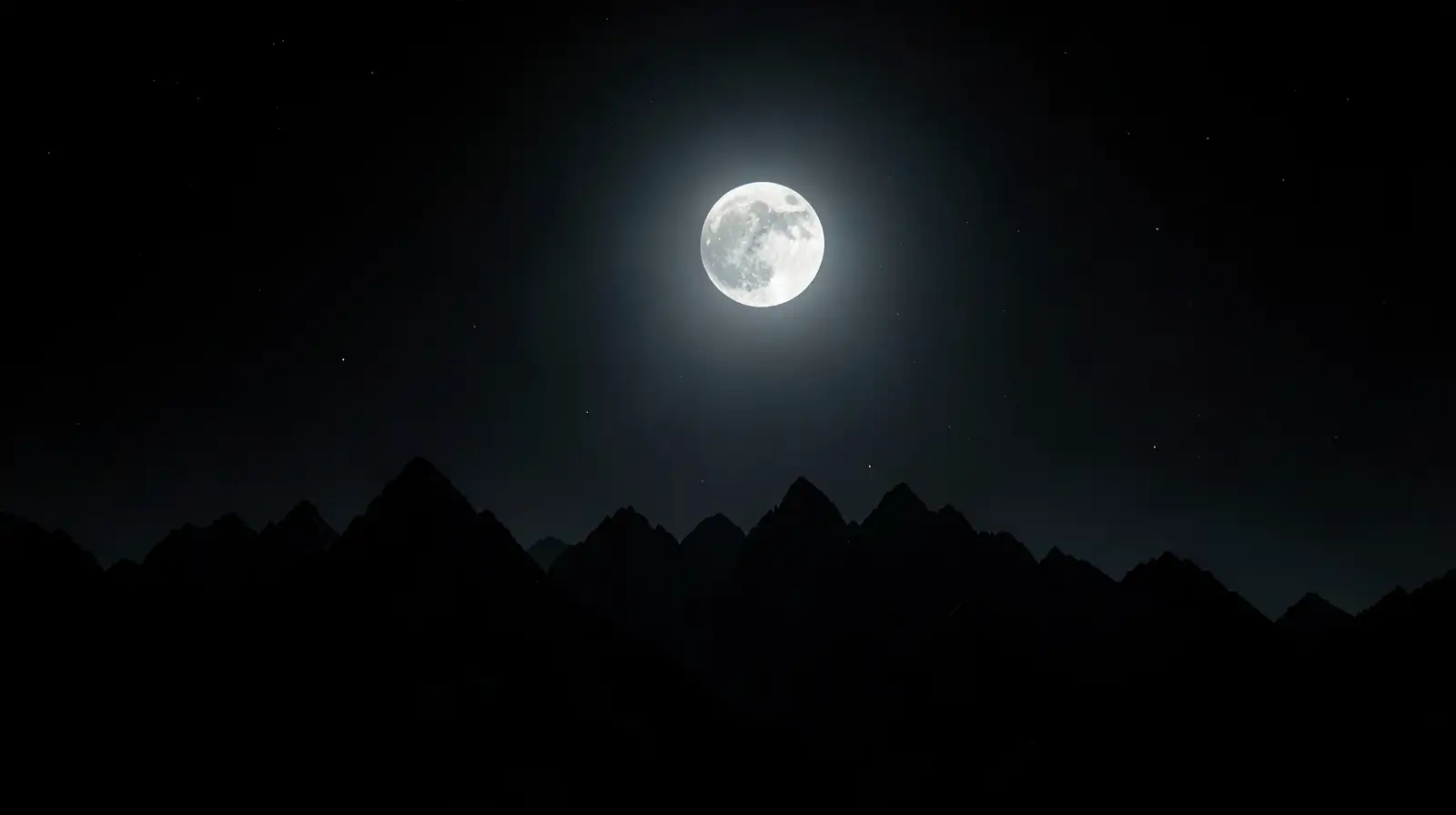
You do not need expensive equipment for a better result. A steady phone, weather and patience can help, while realistic expectations matter: a smartphone will not reproduce the close-up craters seen through telescopes. Aim for a recognisable, well-exposed moon and a pleasing composition rather than pushing the camera beyond its limits.
Wipe the camera lens with a clean microfibre cloth before starting. Fingerprints and dust can soften details and create glare around bright objects. If possible, rest your phone against a stable surface or use a small tripod. Even slight movement becomes noticeable when the camera zooms in.
Avoid using maximum digital zoom straight away. Cropping a slightly wider, sharper image later can look better than enlarging a tiny subject until it becomes grainy. If your phone offers optical zoom or a manual mode, experiment with it, but do not assume that every special setting improves the result.
Editing can help with modest adjustments to contrast, highlights and cropping, but avoid heavy sharpening that creates artificial edges. Remember that a phone camera has physical limits; impressive close-ups online may have been captured with telephoto equipment or a telescope attachment. A clean, balanced photograph that places the moon in context can be more appealing than a blurry attempt at extreme magnification. Practise on different nights, and note which settings work best for your device.
You do not need expensive equipment for a better result. A steady phone, weather and patience can help, while realistic expectations matter: a smartphone will not reproduce the close-up craters seen through telescopes. Aim for a recognisable, well-exposed moon and a pleasing composition rather than pushing the camera beyond its limits.
Find the right conditions
Choose a clear evening and a location with a relatively open view of the sky. Buildings, trees or a roofline can add interest to the frame, but make sure they do not obscure the moon you want to photograph. A moon near the horizon may appear more striking in a composition because it can be framed against familiar objects, although atmospheric haze may soften its appearance.You may also like
- India to convert gas‑fuelled ammonia and urea plant to renewable power: Report
- Eternal Q2 profit soars 92% YoY to Rs 125 crore
- India-New Zealand trade pact to open new opportunities for exporters: Industry
- YouTube may be making the dislike button harder to find on videos
- Michael Dell built one of the world's biggest computer companies; his daughter Kira chose water sustainability and became CEO of an Austin startup in 2025
Wipe the camera lens with a clean microfibre cloth before starting. Fingerprints and dust can soften details and create glare around bright objects. If possible, rest your phone against a stable surface or use a small tripod. Even slight movement becomes noticeable when the camera zooms in.
Control focus and exposure
Tap the moon on the screen to set focus, if your phone allows it. Many camera apps also display a brightness slider; lower exposure gradually until the moon shows texture rather than appearing as a featureless white disc. The exact control varies by phone, so take several test shots and compare them.Avoid using maximum digital zoom straight away. Cropping a slightly wider, sharper image later can look better than enlarging a tiny subject until it becomes grainy. If your phone offers optical zoom or a manual mode, experiment with it, but do not assume that every special setting improves the result.
Compose the final picture
Use a timer or remote shutter if pressing the screen shakes the phone. Take multiple photographs with small exposure changes, then select the clearest one. Night mode is designed for darker scenes and may make the moon too bright, so test it rather than relying on it automatically.Editing can help with modest adjustments to contrast, highlights and cropping, but avoid heavy sharpening that creates artificial edges. Remember that a phone camera has physical limits; impressive close-ups online may have been captured with telephoto equipment or a telescope attachment. A clean, balanced photograph that places the moon in context can be more appealing than a blurry attempt at extreme magnification. Practise on different nights, and note which settings work best for your device.






Loving Newspoint? Download the app now
