
How Phishing Sites Copy Your Bank's Page, and the URL Clue That Exposes Them

Every convincing phishing attack starts with a copy-paste job. Attackers take a real bank's login page, save its HTML, images, and CSS files, upload them to a server they control, and the result is a page that looks, pixel for pixel, like the original. The visual clone is not the hard part. The hard part, for them, is the address bar, and that is exactly where they give themselves away.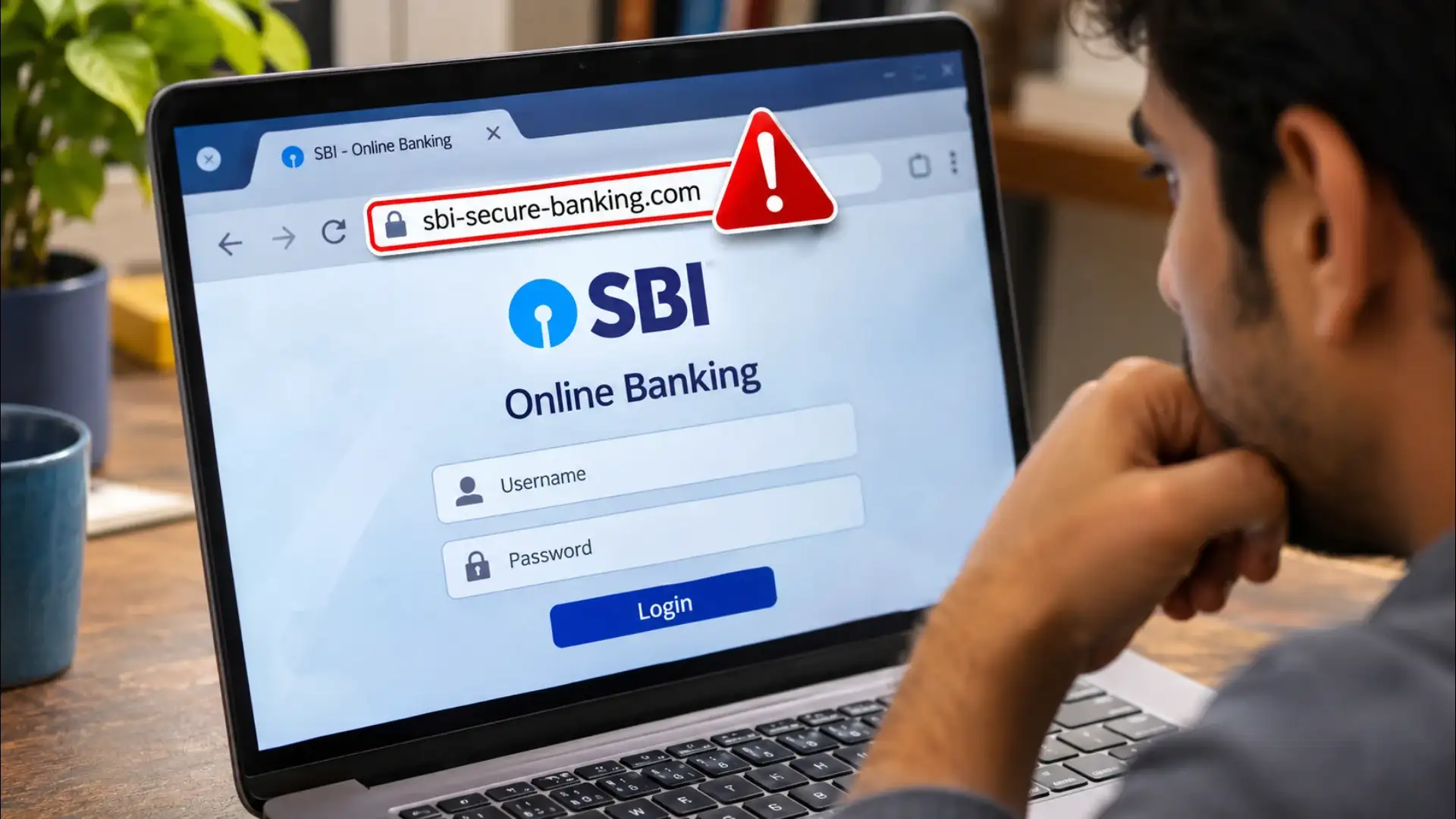
How a Website Clone Actually Works
A browser renders a webpage from a set of instructions: HTML for structure, CSS for appearance, image files for logos and icons. All of this is publicly downloadable. A modern browser's "Save Page As" function captures most of it in seconds. Attackers automate the same process, sometimes pulling an entire site's assets in one pass with tools designed for offline browsing. The cloned page is then hosted on a server the attacker rents under a throwaway account, often paid with a prepaid card or cryptocurrency to avoid a paper trail. When a victim loads it, their browser fetches those stolen assets from the attacker's server and renders them faithfully. The bank's own servers are never involved.The One Thing a Clone Cannot Fake
A domain name is registered through a global system of authorities. To own sbi.co.in or hdfcbank.com, you must apply, verify identity, and pay a recurring fee to a registrar. The real bank owns those names. An attacker cannot register the same string, it is already taken. So they register something close. Common techniques include typosquatting, where a single letter is swapped or added: hdfcbannk.com, sbl.co.in. Another is subdomain spoofing: the real-looking part sits to the left of a dot, but the domain to the right is the attacker's, login.hdfcbank.com.malicious-server.net. The bank's name appears, but it is a label on someone else's address. A third approach uses homograph attacks, replacing a standard Latin letter with a visually identical character from another script. The address looks right at a glance and is wrong character by character.Reading a URL Before You Type a Password
The address bar is the one piece of the page a phishing site cannot alter. Browsers protect it deliberately, no script running inside a webpage can change what the bar displays. Reading it correctly takes about three seconds. Start from the first single slash after the protocol (https://) and read left to find the first dot, then the second. The string between the last dot and that slash is the top-level domain (.com, .in, .net). The string immediately before it is the actual domain name. Everything to the left of that is a subdomain the domain owner controls. So in login.hdfcbank.com.malicious-server.net, the domain is malicious-server, the top-level domain is net, and everything to its left, including the convincing-looking hdfcbank.com, is just a subdomain label. The padlock icon, which many people treat as a safety signal, confirms only that the connection between your browser and that server is encrypted. It says nothing about who owns the server. A phishing site can have a valid padlock. The domain name is the only signal that matters.Why the Link in the Message Is the Attack
The phishing message, an SMS, an email, a chat notification, is doing one job: getting the victim to click before they look. Urgency is the standard tool. "Your account will be blocked in 24 hours." "Unusual login detected. Verify immediately." The emotional spike is designed to bypass the habit of checking. Attackers also shorten URLs through redirect services so the real destination is hidden until the browser lands on it. A link that reads bit.ly/secure-verify reveals nothing. The defence is the same in every case: before entering any credential, stop, look at the full address bar, and read the actual domain. Not the subdomain. Not the path. The domain. If it is not the bank's registered name, exactly, with no extra words or characters, close the tab. Go to the bank's app or type the known address directly.Next Story