
What You Actually Share When You Log In With Google or Facebook

Every time you tap 'Continue with Google' or 'Sign in with Facebook', you skip a form and land inside a new app in seconds. That convenience is real. What is also real is the exchange happening underneath it, a structured handshake between two services that transfers specific pieces of your identity, and leaves a connection running until you cut it yourself.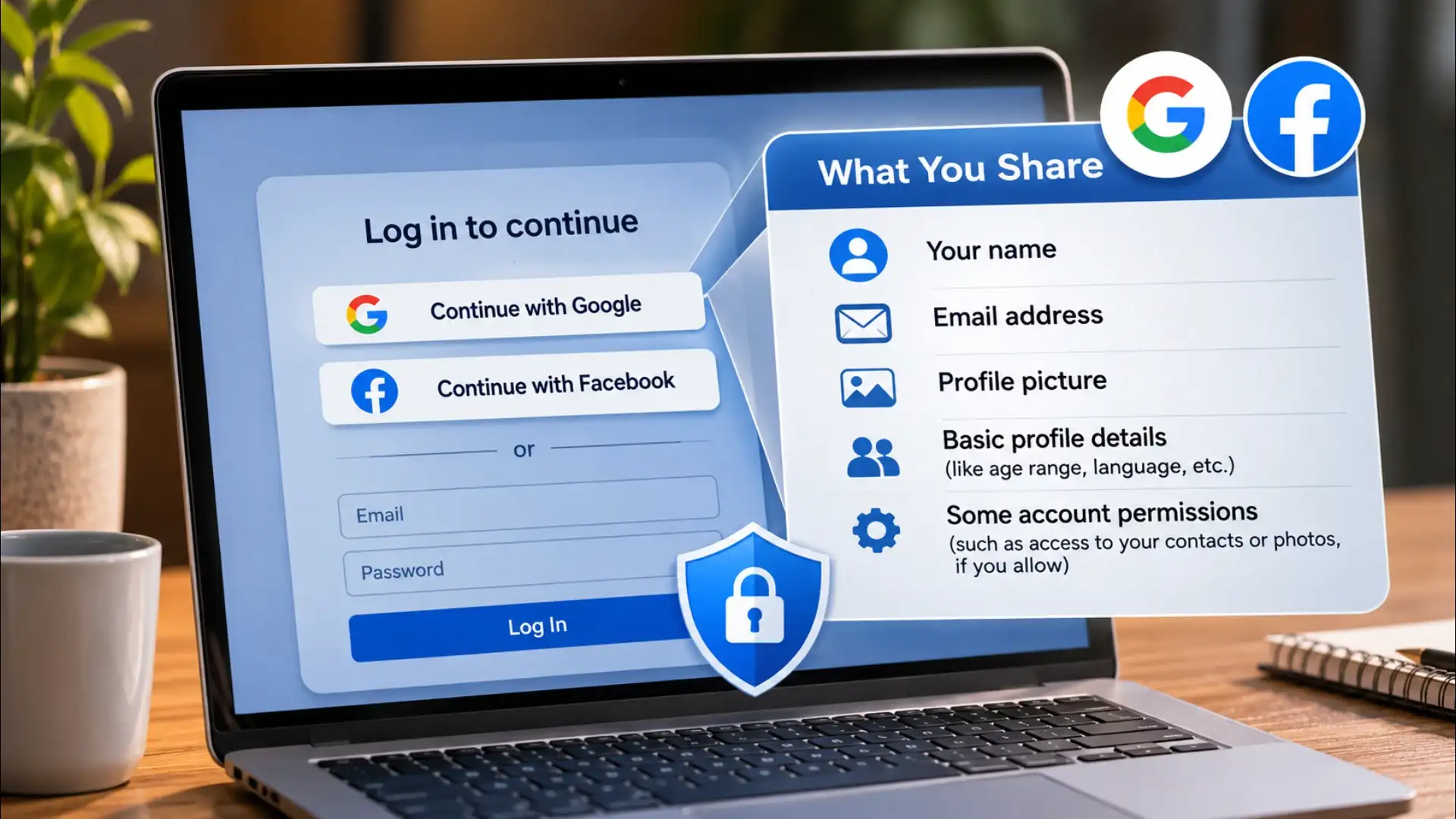
Beyond name and email, the identity provider may also pass your profile photo, your preferred language, your account's region, and a unique identifier that lets the site recognise you on every future visit. You do not see this identifier. It sits in the background and links your activity on the new site back to your main account.
What that screen can contain varies. A basic app asks only for your name and email. A social app may ask to read your friend list or your followers. A calendar tool may ask to read or write your calendar. A contacts-based app may ask to see your entire address book. Each of these is listed on that screen. The permission is real, and it lasts until you go back and revoke it.
Apple's 'Sign in with Apple' handles this differently from the others. It lets you hide your real email and send a randomised relay address to the app instead. The app gets a working email, but not your actual one. This is the narrowest data transfer of the major identity providers.
This matters because two services with very different data practices are now connected through your login. A site with weak security or a broad data-sharing policy now holds your email address and, depending on what you approved, more. If that site is breached, your email is in the breach. If that site sells data to advertisers, your email may travel further.
The connection also works in reverse. Many identity providers use the fact that you logged in to a third-party site as a signal about your interests. That signal can feed the advertising system of the identity provider itself.
Going through this list once is usually surprising. Apps from services you stopped using years ago often still hold an active connection. Revoking access does not delete your account on the third-party site, it only cuts the login bridge. Your data on that site stays until you delete it separately.
The practical habit is simple: review the list every few months and remove anything you no longer use. For new sign-ins, read the permissions screen before tapping Allow, and choose a dedicated email login when an app asks for more than your name and email.
The login shortcut is genuinely useful. The question is not whether to use it, but whether you know what you agreed to when you did.
The Basic Data That Always Crosses Over
When you log in to a third-party site using an existing account, Google, Facebook, Apple, or any other identity provider, the site receives a token, not your password. That token tells it who you are. Attached to it, at minimum, are your name and your primary email address. These two fields are almost always shared, because the receiving site needs them to create your profile.Beyond name and email, the identity provider may also pass your profile photo, your preferred language, your account's region, and a unique identifier that lets the site recognise you on every future visit. You do not see this identifier. It sits in the background and links your activity on the new site back to your main account.
The Permissions Screen You Click Through Too Fast
Most identity providers show a permissions screen before completing the login. It lists what the new site is asking for. The problem is that this screen appears once, in the middle of a task you are trying to finish, and most people tap 'Allow' without reading it.What that screen can contain varies. A basic app asks only for your name and email. A social app may ask to read your friend list or your followers. A calendar tool may ask to read or write your calendar. A contacts-based app may ask to see your entire address book. Each of these is listed on that screen. The permission is real, and it lasts until you go back and revoke it.
Apple's 'Sign in with Apple' handles this differently from the others. It lets you hide your real email and send a randomised relay address to the app instead. The app gets a working email, but not your actual one. This is the narrowest data transfer of the major identity providers.
What the Third-Party Site Can Do With What It Receives
Once a site has your name, email, and any granted permissions, it holds that data under its own privacy policy, not the identity provider's. The identity provider's rules governed the handshake. After that, the receiving site's rules apply.This matters because two services with very different data practices are now connected through your login. A site with weak security or a broad data-sharing policy now holds your email address and, depending on what you approved, more. If that site is breached, your email is in the breach. If that site sells data to advertisers, your email may travel further.
The connection also works in reverse. Many identity providers use the fact that you logged in to a third-party site as a signal about your interests. That signal can feed the advertising system of the identity provider itself.
How to See and Cut the Connections You Have Already Made
Every major identity provider maintains a page where you can see every app connected to your account and revoke access to any of them. For Google, it is under your account's security settings, labelled 'Third-party apps with account access'. For Facebook, it is under 'Settings and Privacy', then 'Apps and Websites'. Apple shows connected apps under your Apple ID settings on any Apple device.Going through this list once is usually surprising. Apps from services you stopped using years ago often still hold an active connection. Revoking access does not delete your account on the third-party site, it only cuts the login bridge. Your data on that site stays until you delete it separately.
The practical habit is simple: review the list every few months and remove anything you no longer use. For new sign-ins, read the permissions screen before tapping Allow, and choose a dedicated email login when an app asks for more than your name and email.
The login shortcut is genuinely useful. The question is not whether to use it, but whether you know what you agreed to when you did.
Next Story