
Lock Screen Tech Tips: Simple Steps to Enable an On-Screen Volume Control on iOS

For daily music listeners, podcast enthusiasts, and media consumers, adjusting volume quickly is a frequent necessity. While pressing the physical volume up and down buttons on the side of your iPhone gets the job done, relying on hardware buttons isn't always ideal especially if your phone is resting on a desk, housed in a thick protective case, or if the hardware buttons are worn out.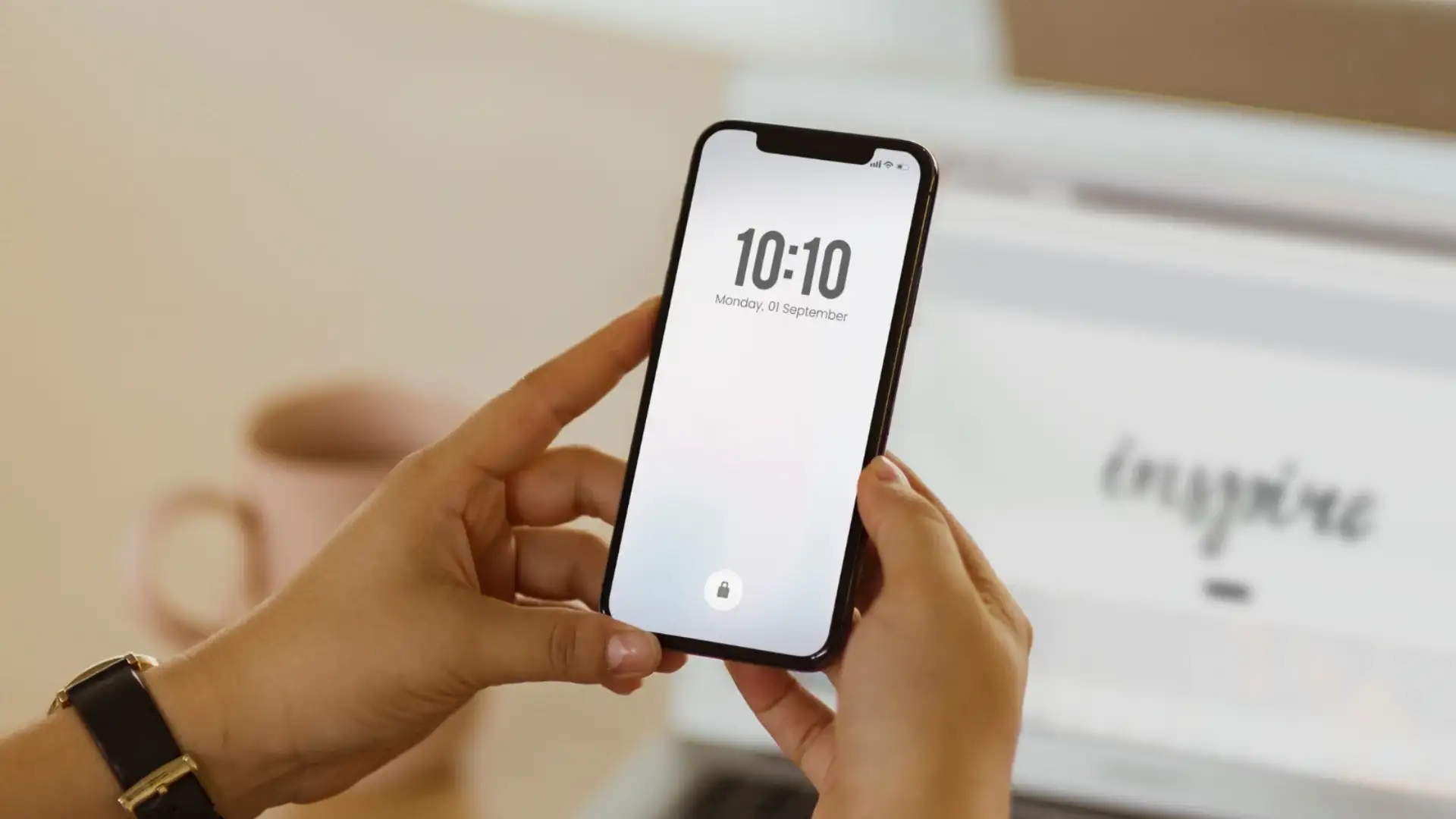
Apple’s iOS ecosystem offers built-in features that allow users to manage audio playback and volume levels seamlessly from the lock screen interface. Setting up on-screen volume adjustments gives you precise, touch-based control over your media without requiring you to unlock your iPhone or swipe down to open the Control Center.
Apple’s iOS ecosystem offers built-in features that allow users to manage audio playback and volume levels seamlessly from the lock screen interface. Setting up on-screen volume adjustments gives you precise, touch-based control over your media without requiring you to unlock your iPhone or swipe down to open the Control Center.
Step-by-Step: Enabling the Lock Screen Media Volume Control
- Activate Active Audio Playback:
- The lock screen volume slider is natively tied to the iOS Live Activities and Now Playing media widget. Open your preferred audio streaming app (such as Apple Music, Spotify, YouTube Music, or Podcasts) and begin playing any track or episode.
- Access the "Now Playing" Lock Screen Widget:
- Press the side power button to put your iPhone to sleep, then wake the screen. You will see the expanded "Now Playing" media widget displaying album art, playback controls, and a prominent interactive volume slider directly at the bottom of the widget card.
- Enable Lock Screen Control Permissions (If Not Displaying):
- If the media player and volume controls do not automatically appear when media is active, navigate to Settings > Face ID & Passcode (or Touch ID & Passcode). Scroll down to the
section and ensure that Lock Screen Widgets and Live Activities are toggled ON.
- If the media player and volume controls do not automatically appear when media is active, navigate to Settings > Face ID & Passcode (or Touch ID & Passcode). Scroll down to the
- Utilize Accessibility Features for an Always-On Volume Control:
- For users seeking a persistent volume control slider that stays accessible across all screens, including the lock screen, enable AssistiveTouch. Go to Settings > Accessibility > Touch > AssistiveTouch and turn it ON. Customize the top-level menu to include "Volume Up" and "Volume Down" or a custom volume slider icon for instant screen-based adjustments.
Tips for Smooth Audio Management on iOS
- Dynamic Island Integration: On newer iPhone models equipped with the Dynamic Island, tapping and holding the active audio island immediately expands the player widget, giving you quick access to the volume slider even when browsing other applications.
- Precise Volume Adjustments: Dragging the touch volume slider allows for much finer level adjustments compared to the fixed-step increments provided by physical side buttons.
Next Story