
Smartphone Tips: Never Miss a Call or Message with Flash Notifications - Here's How

In the fast-paced world of smartphones, every notification counts. Whether it's a missed call from a friend or an important message from work, staying in the loop is essential. Luckily, with the latest Android 14 update, Google has introduced a nifty feature that adds a visual flair to your notifications: flash notifications .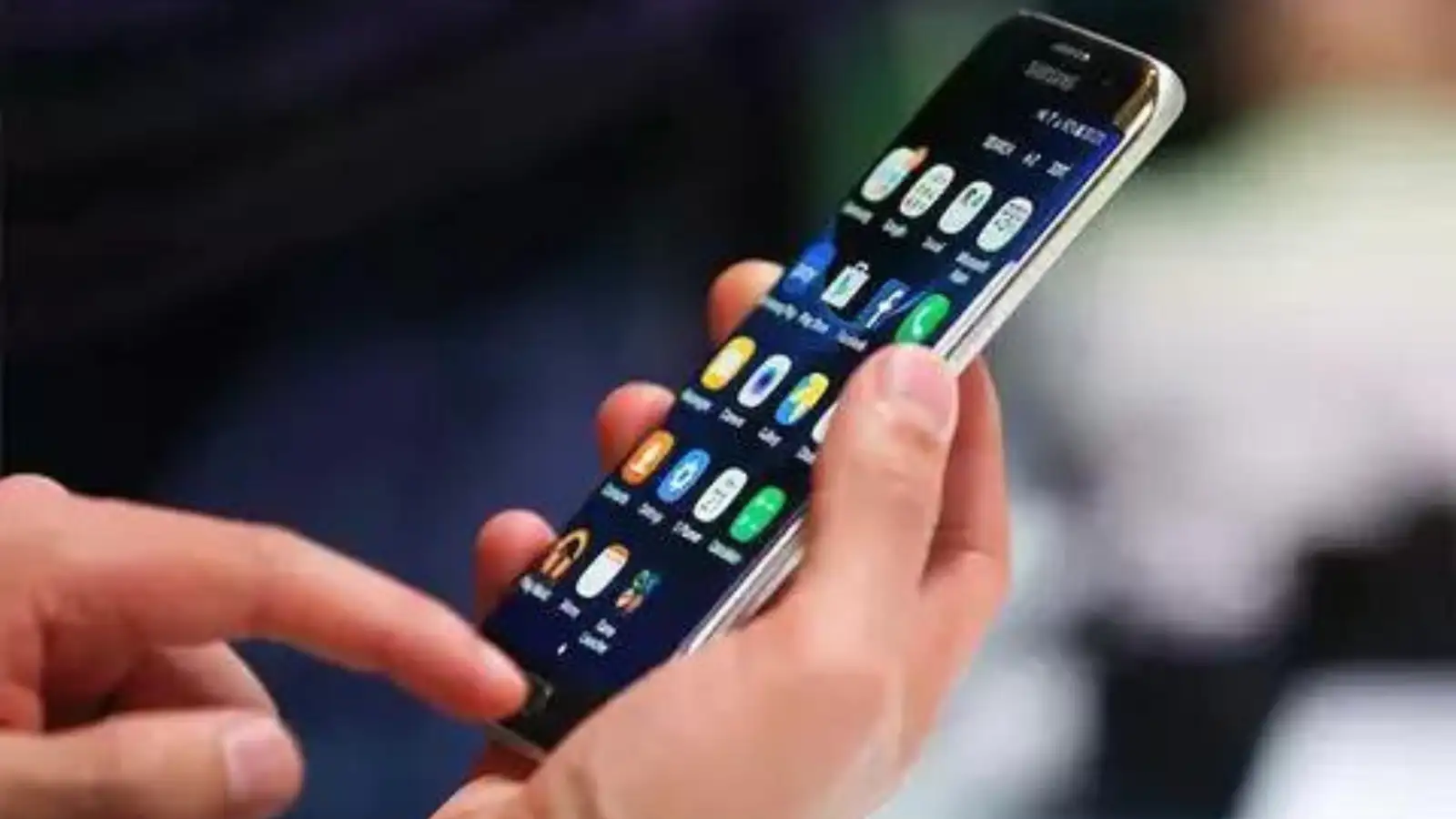
What Are Flash Notifications ?
Flash notifications are a clever way to ensure you never miss an alert, even if your phone is on silent or in your pocket. With two options to choose from—camera flash or screen flash—you can customize how your phone grabs your attention when a notification arrives.
How to Activate Flash Notifications
Activating flash notifications on your Android phone is a breeze:
# Things to Keep in Mind
Here are a few handy tips to ensure you make the most out of flash notifications:
Always Visible: Whether your phone is in use or locked, flash notifications will catch your eye.
Customizable Intensity: If the bright camera flash is too much, opt for the subtle screen flash instead.
Improved Functionality: Unlike some older versions where the flash blinked continuously, Android 14's flash notifications are refined for a better user experience.
What's New in Android 15?
Google's annual developer conference, Google I/O 2024, brought forth exciting updates, including the unveiling of Android 15 Beta 2. This latest iteration of Android promises:
With these innovative features, Google continues to raise the bar for smartphone functionality and security, making the Android experience more seamless than ever before.
What Are Flash Notifications ?
Flash notifications are a clever way to ensure you never miss an alert, even if your phone is on silent or in your pocket. With two options to choose from—camera flash or screen flash—you can customize how your phone grabs your attention when a notification arrives.
How to Activate Flash Notifications
Activating flash notifications on your Android phone is a breeze:
You may also like
- Skyroot's energy reflects vibrant spirit of India's space ecosystem: PM Modi
- Chip that can give sight to the blind: Former president of Elon Musk's Neuralink invents only treatment that restores human vision and takes it to Europe
- Diablo 4 update 3.1.2 release date, time and patch notes as Blizzard makes sweeping fixes
- ChatGPT outage: Users report issues in generating AI photos, company says 'sorry'
- Bank of Baroda confirms data breach: employee email account hacked, bank says core banking systems untouched
- Access Settings: Head over to the Settings option on your device.
- Navigate to Notifications: Scroll down until you find the Notifications tab and tap on it.
- Enable Flash Notifications: Towards the bottom of the notification settings, you'll spot the Flash Notification option. Tap on it.
- Choose Your Preference: Select either camera flash or screen flash based on your preference.
- Voila!: Your flash notifications are now activated and ready to grab your attention whenever needed.
# Things to Keep in Mind
Here are a few handy tips to ensure you make the most out of flash notifications:
Always Visible: Whether your phone is in use or locked, flash notifications will catch your eye.
Customizable Intensity: If the bright camera flash is too much, opt for the subtle screen flash instead.
Improved Functionality: Unlike some older versions where the flash blinked continuously, Android 14's flash notifications are refined for a better user experience.
What's New in Android 15?
Google's annual developer conference, Google I/O 2024, brought forth exciting updates, including the unveiling of Android 15 Beta 2. This latest iteration of Android promises:
- Enhanced Performance: Enjoy smoother app experiences and a premium device feel.
- Heightened Security: Advanced theft protection features ensure your data remains secure even if your phone falls into the wrong hands.
With these innovative features, Google continues to raise the bar for smartphone functionality and security, making the Android experience more seamless than ever before.






Loving Newspoint? Download the app now
